
Get started with D-Store integration
D-Store offers a cost-efficient integration solution to Point-Of-Sale (POS) providers who cooperate with food and beverage (F&B) merchants to take dine-in and pick-up orders in the merchants' digital stores. With this solution, POS providers can implement the following capabilities:
- Synchronize product information with D-Store
- Receive order creation requests and order information from D-Store
- Update order changes with D-Store
To integrate this solution, the POS provider needs to complete the following steps:
- Step 1: Prepare for integration
- Step 2: Integrate D-Store APIs
- Step 3: Conduct sandbox acceptance testing
- Step 4: Onboard your merchants and go live
How it works
The following figure illustrates how the integration solution works.
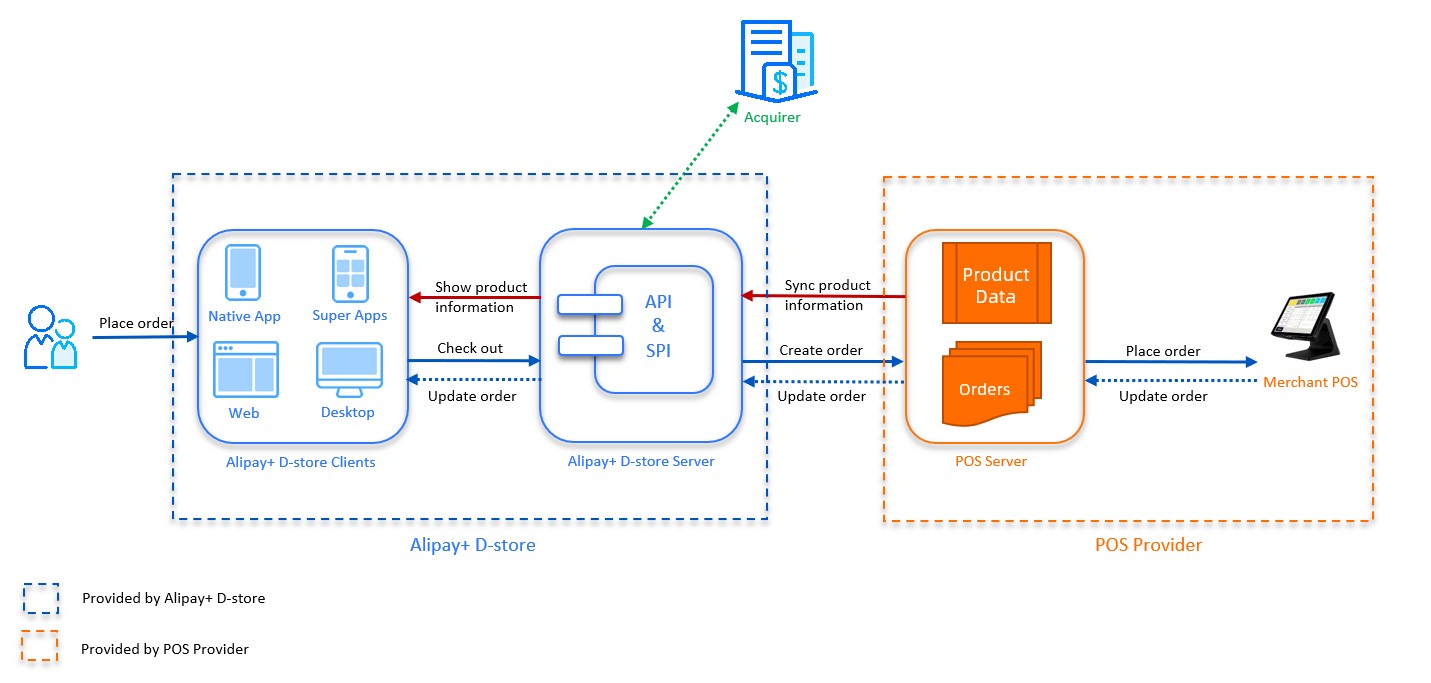
Figure 1. Integration workflow
The workflow consists of the following steps:
- The POS server synchronizes the product information with D-Store.
- The D-Store server synchronizes product information with its multiple client terminals, such as mini-program, native app, mobile web page, and desktop web page. The client terminal then necessarily displays the product information to the user.
- After the user places an order and completes the payment, the D-Store client terminal sends a request to the POS server to create an order.
- The POS server receives the order creation request and order information, such as the payment amount, order items, and order amount details, from D-Store. The POS server then places orders to the merchant POS.
- Once there is any order change, the merchant POS passes the order change to the POS server. The POS server then updates the order information with D-Store.
Before you begin
Before you start the integration, it is recommended to learn about the following things:
- D-Store APIs send HTTPS requests and receive responses using the POST method. For more information about the structure of a request and response, see API overview.
- When calling D-Store APIs, to ensure message transmission security, the POS provider must perform message signing and signature validation properly. For more information, see Call an API via adding a signature.
Step 1: Prepare for integration
To get prepared for the integration, perform the following actions:
1. Sign the NDA
Contact the D-Store Business Development (BD) team to obtain and sign the Non-Disclosure Agreement (NDA), which will enable you to access additional support and resources from D-Store.
2. Exchange sandbox resources
To prepare for the API development and testing, you need to exchange sandbox resources with D-Store. The following table lists the sandbox resources and the corresponding tasks.
Provider | Sandbox resource | Description | Tasks |
D-Store | D-Store gateway endpoint | Indicates the domain name to construct the API request URL where the POS provider sends API requests. | Set its value to |
client-Id | Indicates the unique ID that is assigned by D-Store to identify a POS provider. | Set its value to | |
D-Store public key | Used to validate API requests or responses that are sent from D-Store to the POS provider in the sandbox. | Set its value as below. copy | |
Web page domain name | Used to preview and test the store on the mobile or desktop web page. | Obtain its value from the SA. | |
POS provider | POS gateway endpoint | Used to receive API requests from D-Store in the sandbox. | Provide its value for the SA. Note that your endpoint needs to follow the HTTPS protocol. |
POS private key | Used to sign API requests or responses that are sent from the POS provider to D-Store in the sandbox. | Take either of the following two actions:
copy | |
POS public key | Used by D-Store to validate API requests or responses that are sent from the POS provider to D-Store. |
| |
posAccountId | Indicates the unique ID that is assigned by the POS provider to identify a merchant. | Obtain its value from the SA. | |
posStoreId | Indicates the unique ID that is assigned by the POS provider to identify a store. | Obtain its value from the SA. |
Note: Sandbox resources cannot take effect in the production environment. To launch your codes and go live, you need to replace the sandbox resources with production resources to configure the production environment. For more information, see Configure the production environment.
Step 2: Integrate D-Store APIs
To implement D-Store F&B capabilities, you need to integrate a series of APIs provided by D-Store.
API list
The following table lists the APIs in terms of endpoint and calling direction. You can click the API name to see the detailed specification of each API.
API name | Required | Endpoint | Direction |
Yes | /v2/pos/syncProduct | POS -> D-Store | |
Yes | /v2/pos/createOrder | D-Store -> POS | |
Yes | /v2/pos/notifyOrderChange | POS -> D-Store | |
Yes | /v2/pos/inquireOrderDetail | D-Store -> POS |
Sequence flow
The following figures illustrate the sequence flow of calling D-Store APIs in dine-in and pick-up scenarios.
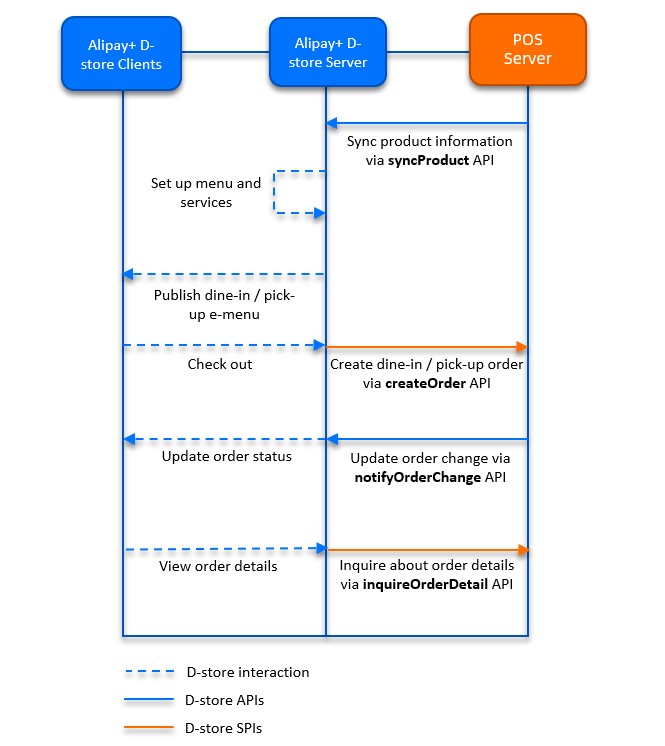
Figure 2. API sequence flow
The sequence flow consists of the following steps:
- The POS provider calls the syncProduct API to pass the product information to D-Store.
- After the user places an order and pays, D-Store calls the createOrder API to request the POS provider to create an order for the user.
- After the order is created, the POS provider calls the notifyOrderChange API to inform D-Store about any order updates, such as changes in order amount, order status, and so on. Moreover, D-Store can call the inquireOrderDetail API to actively track order changes.
Step 3: Conduct sandbox acceptance testing
After you integrate D-Store APIs and perform free tests in the sandbox, contact the SA for the sandbox acceptance testing. The SA provides a series of test cases that are designed by D-Store. Complete the required test cases and report the results to the SA.
Step 4: Onboard your merchants and go live
When all the test cases are passed and verified by the SA, you can go live by taking the following steps:
Configure the production environment
To prepare for going live, you need to configure the production environment with production resources. Refer to the following table and complete the tasks.
Provider | Production resource | Tasks |
D-Store | D-Store gateway endpoint | Replace its value for the sandbox with |
client-Id |
| |
D-Store public key |
| |
POS provider | POS gateway endpoint | Provide its value for the SA. Note that your endpoint needs to follow the HTTPS protocol and the value needs to be different from that in the sandbox. |
POS private key |
copy
| |
POS public key | ||
posAccountId |
| |
posStoreId |
|
Go live
Once you configure the production environment as required, you are ready to launch your codes, onboard your merchants, and start your business. If you need any support in troubleshooting or merchant onboarding, contact the SA.