
Menus
You can display the menus of your D-store across various sales channels via Menus. The menus can be applied to your preferred service types. This guide walks you through the steps to set up menus.
Before you begin
Before setting up menus, ensure you have created items and classified items into the appropriate categories because the categories and items you have set up are displayed on the menus. For more information on items and categories, refer to Create and update items and Create and update categories.
Create menu
To create a menu, take the following steps:
- On D-store Console, go to Menus > Create.
- Enter the menu information.
- Customize your menu.
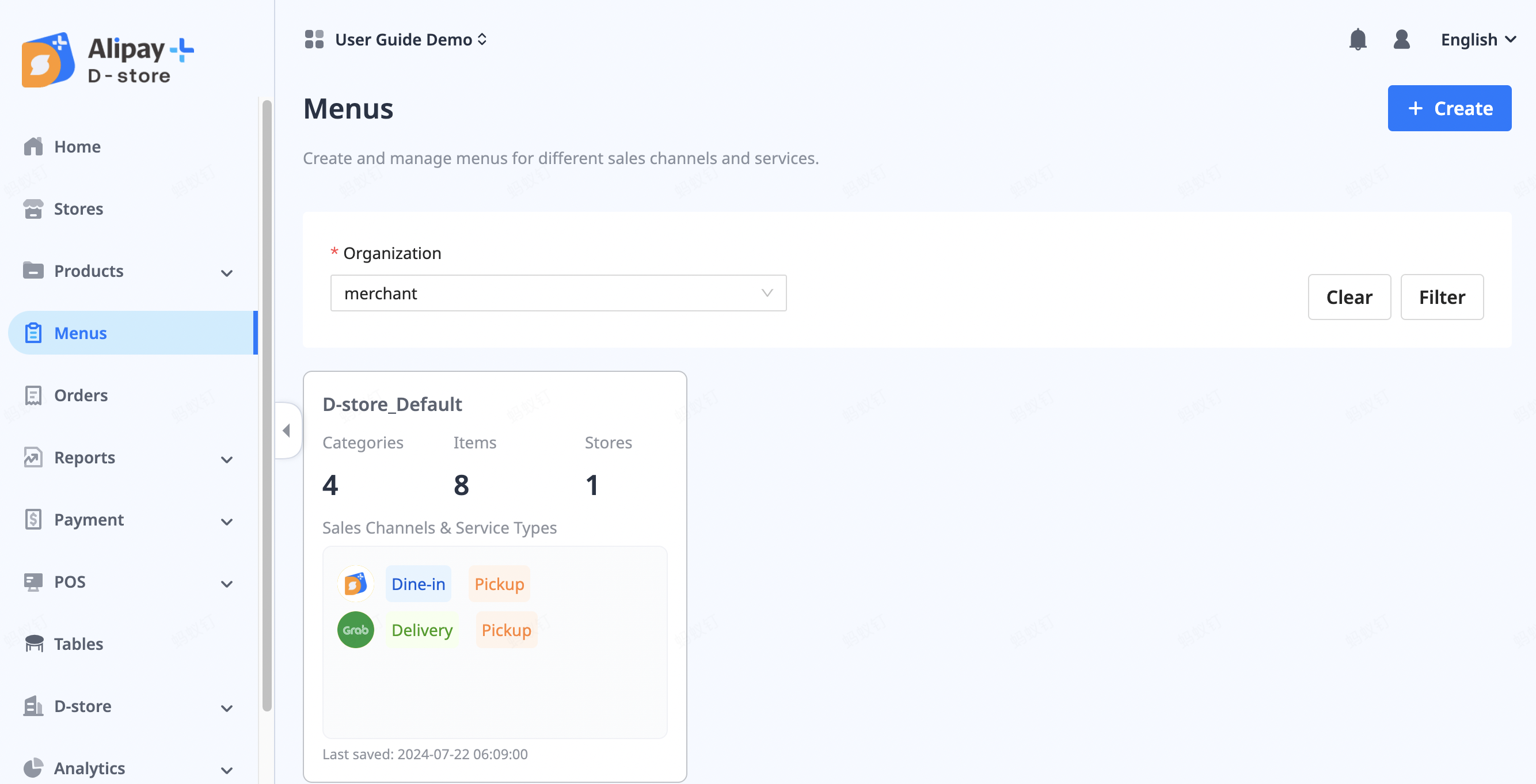
Note: Only one menu can be maintained for each sales channel and service type, but multiple menus can be created for different service types within a single sales channel.
Menu information
To enter the menu information, take the following steps:
- Enter the menu name and description. Note that these details are not visible to buyers.
- Select the sales channels and service types where you want your menus to appear.
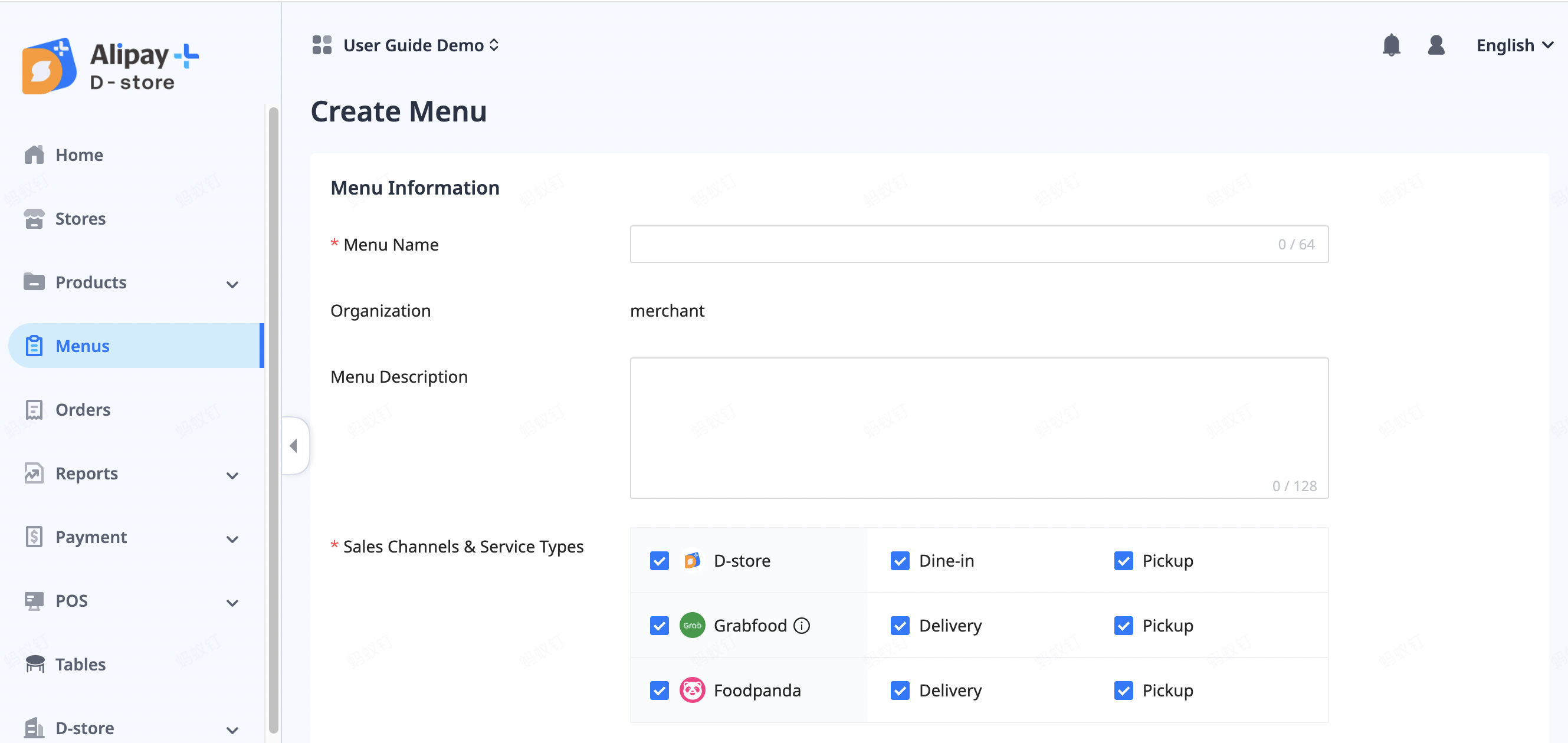
Note: Please ensure the sales channels and service types of menus are consistent with the publish settings of the menu items included on the Items page.
Menu
To customize categories and items for each menu, take the following steps:
- Turn on the toggle on the right side of each category to select the categories and items you want to display on the menus. The categories that are not selected are included in Categories excluded from the menu.
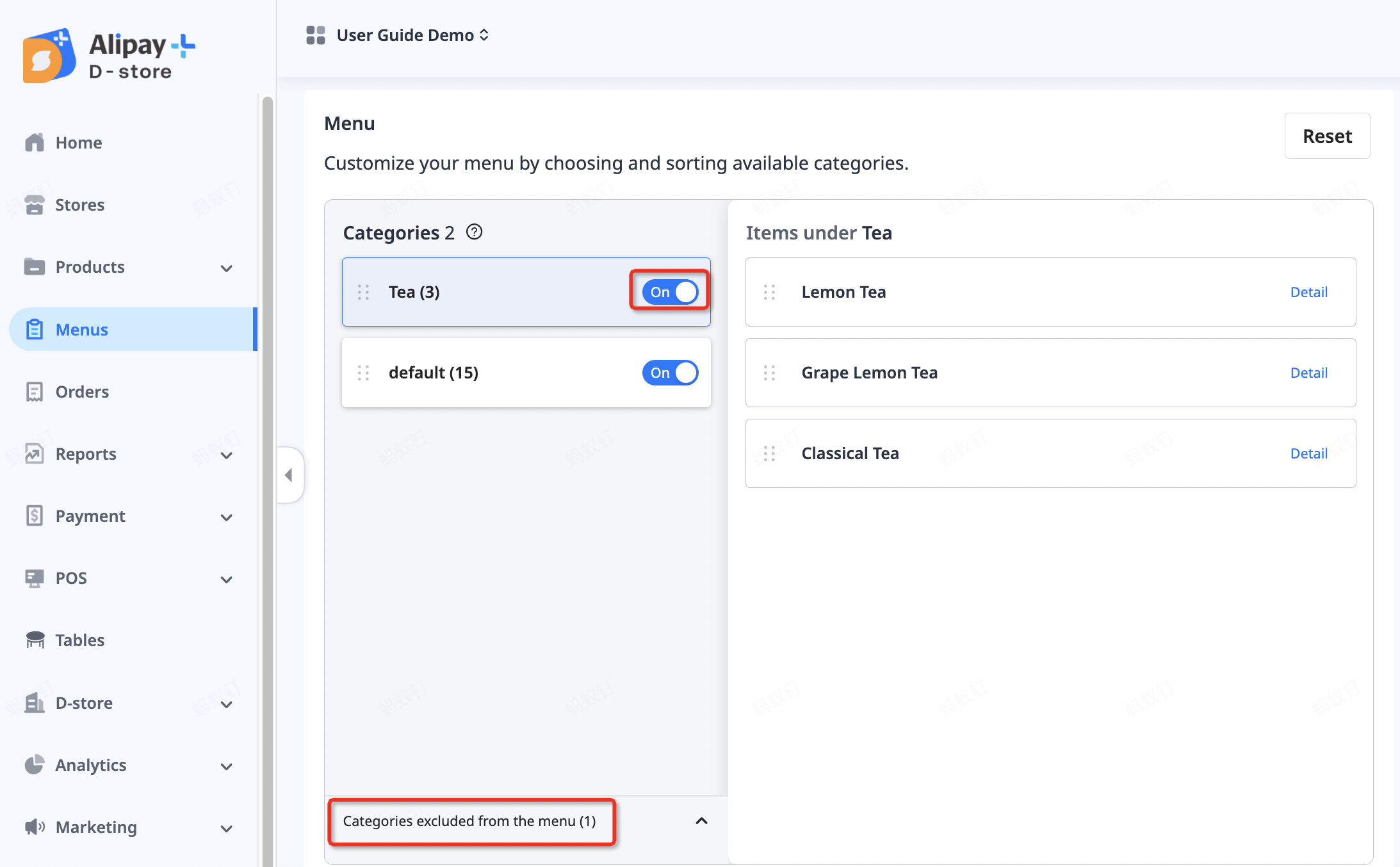
- (Optional) Use the up and down arrows or drag the handle next to each category to adjust the display order of categories on the menu.
- (Optional) Use the up and down arrows or drag the handle next to each item to adjust the display order of items within a category on the menu.
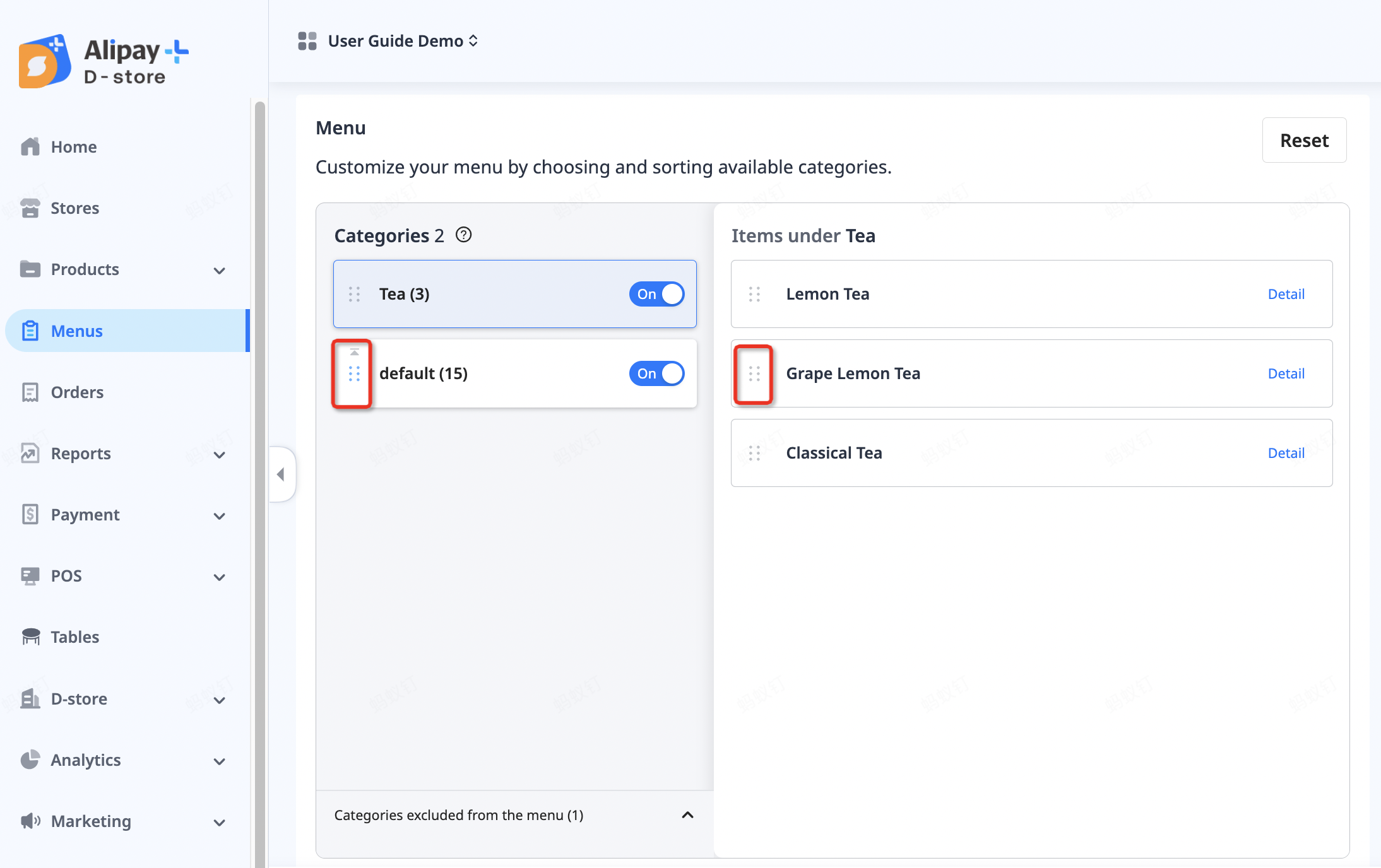
Note: The display orders of categories and items only apply to menus where you have modified them. Other menus will maintain the default display order for category and item lists.
Update menu
To update your menus, take the following steps:
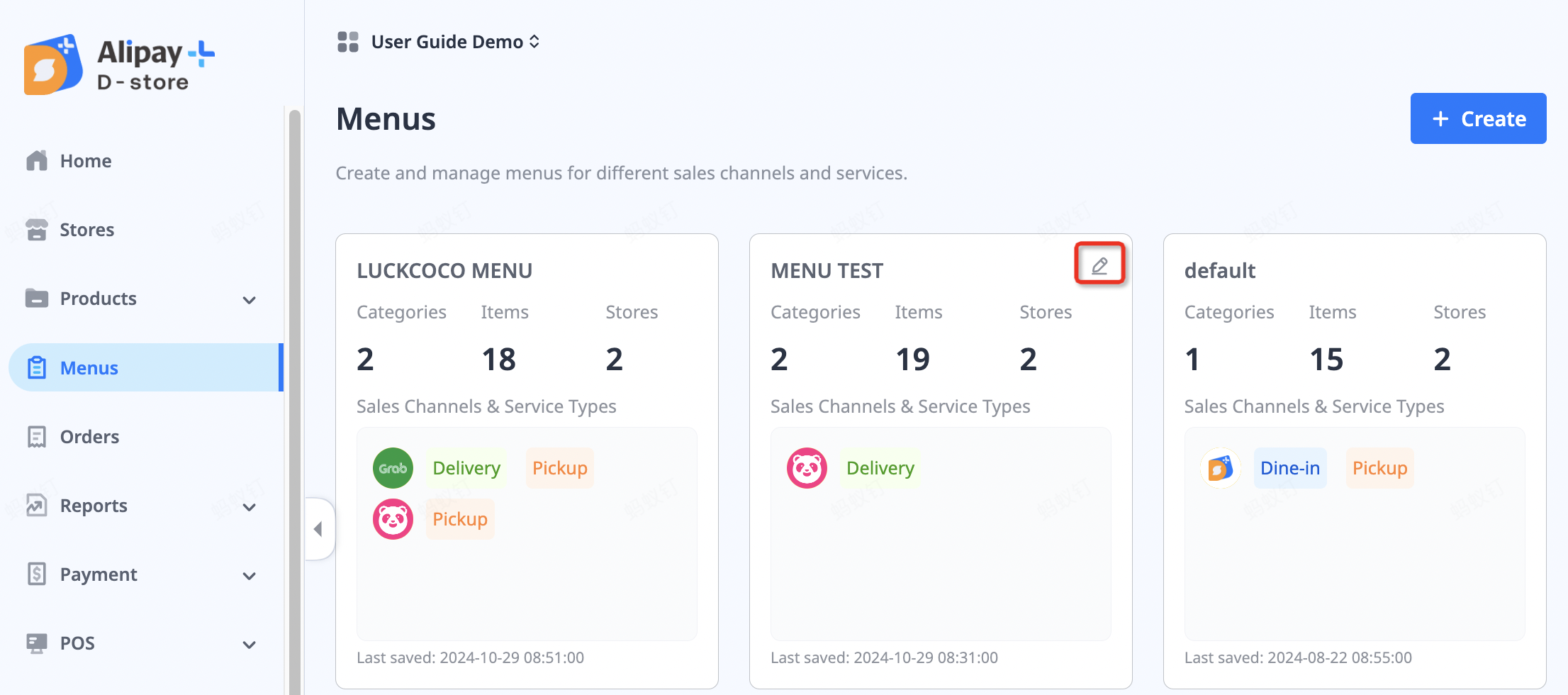
- On D-store Console, go to Menus.
- In the menu list, locate the menu you want to update.
- Click the edit icon in the upper right corner of the menu.
- Click Save to apply the new information.
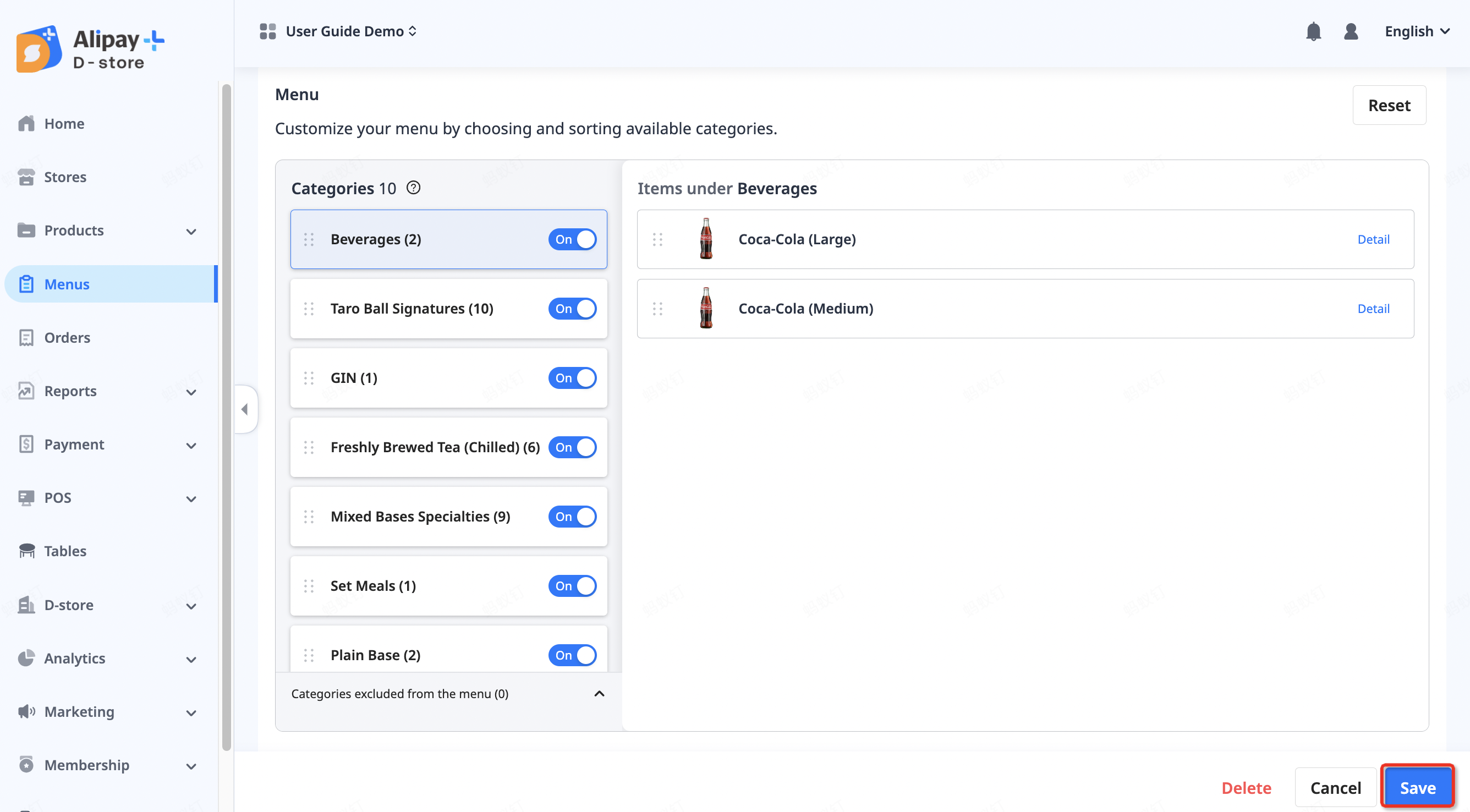
Note: Any updates to categories and items are automatically synchronized with the sales channel menus.
Delete menu
To delete a menu, take the following steps:
- On D-store Console, go to Menus.
- In the menu list, locate the menu you want to delete.
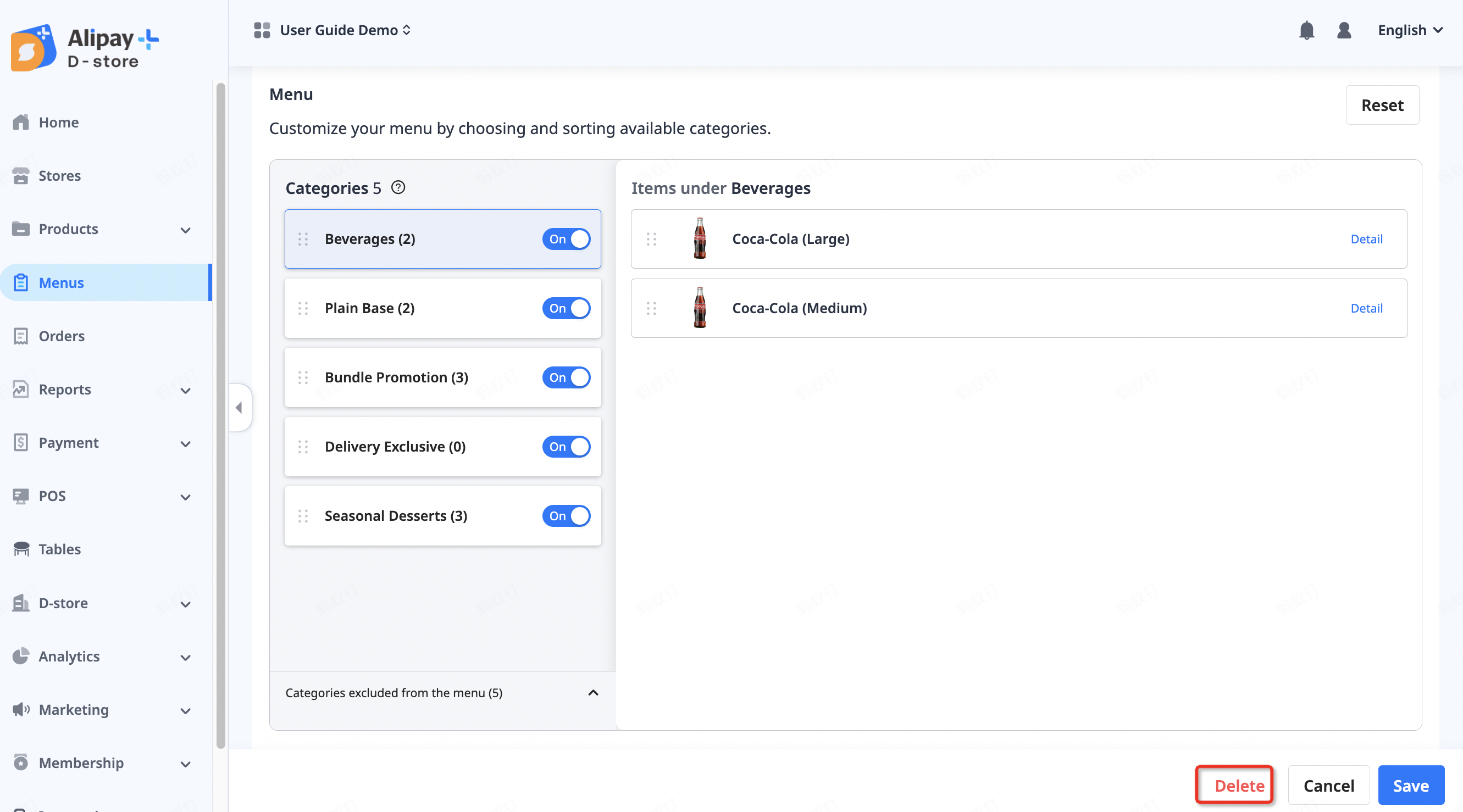
- Click the edit icon in the upper right corner of the menu.
- On the Edit Menu page, click Delete, and then confirm your action by clicking Delete in the popup.
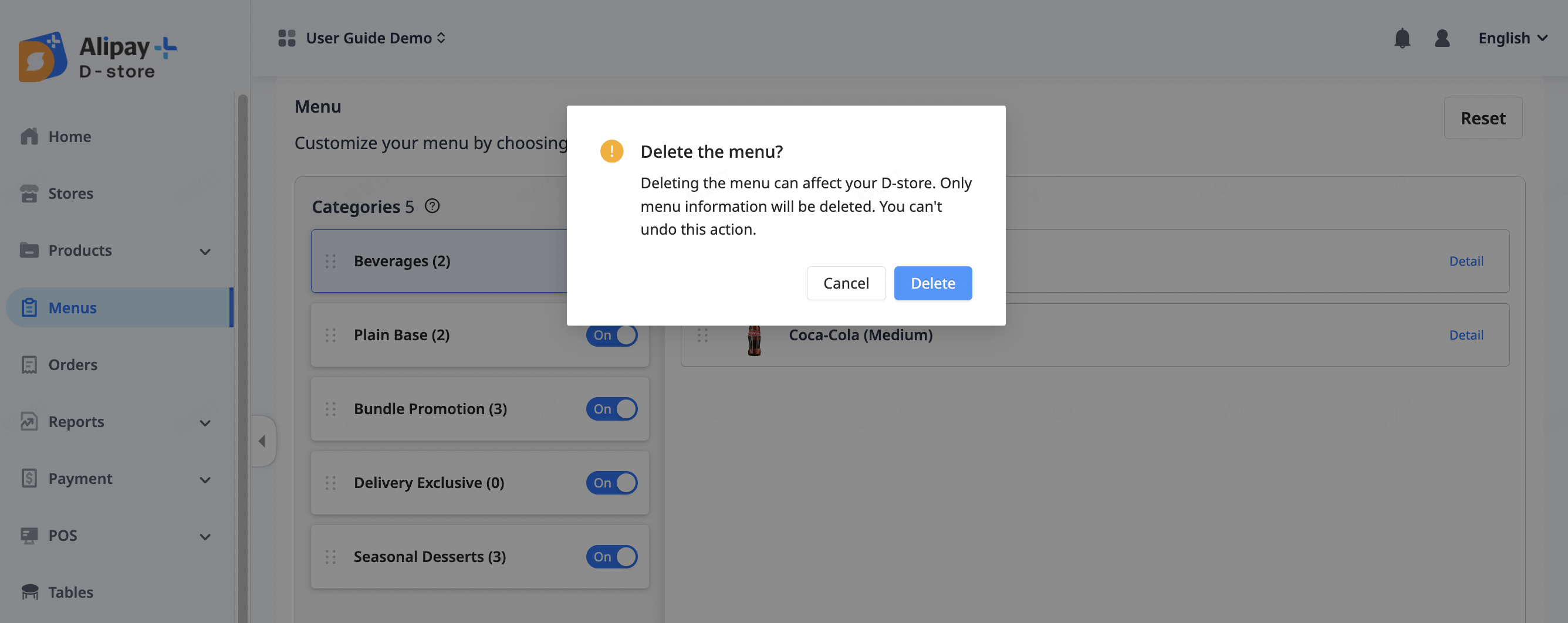
Note: If a menu currently being used on a channel is deleted without a replacement, the deleted menu will remain active on that channel.